
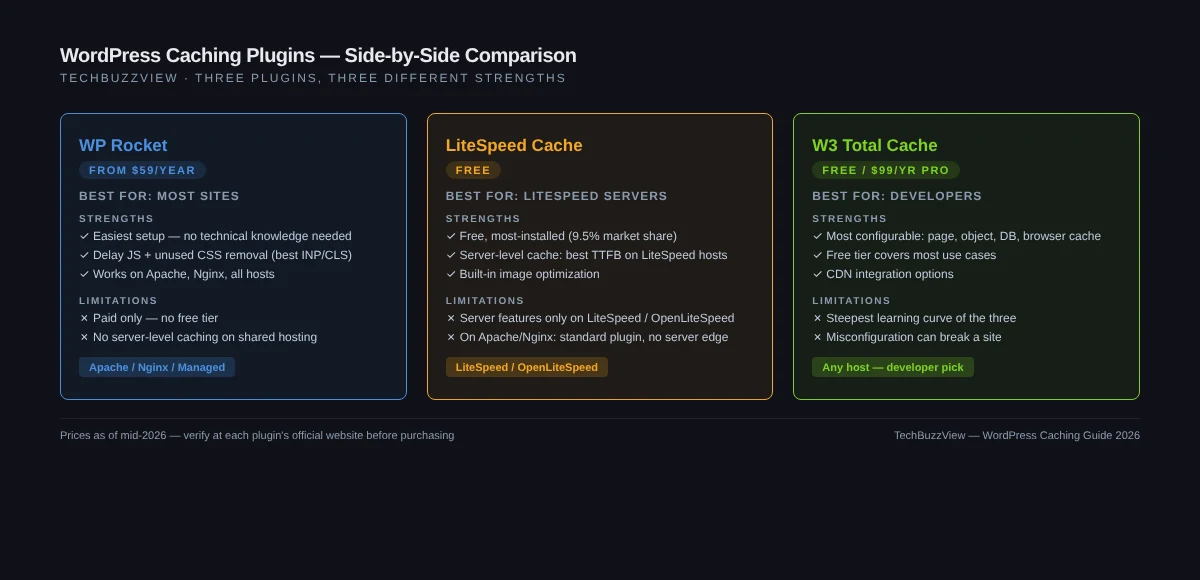
The right WordPress caching plugin depends almost entirely on your hosting stack, not on features lists. If your host runs LiteSpeed servers, LiteSpeed Cache is free and outperforms every paid alternative on TTFB. If you’re on Apache or Nginx, WP Rocket delivers the fastest results with zero configuration skill required. If you want deep control without paying, W3 Total Cache is the only free plugin that covers all caching layers — though it takes real time to configure correctly. Here’s what actually separates them in 2026, and how to pick without wasting money.
Quick Comparison: Best WordPress Caching Plugins 2026
| Plugin | Price | Best For | Hosting Requirement | Ease of Setup |
|---|---|---|---|---|
| WP Rocket | $59/yr (1 site) | Non-LiteSpeed hosts, non-developers | Apache, Nginx, most managed | Very Easy |
| LiteSpeed Cache | Free | LiteSpeed-server sites | LiteSpeed or OpenLiteSpeed required for full benefit | Easy (on compatible host) |
| W3 Total Cache | Free / $99/yr Pro | Developers needing granular control | Any | Complex |
| WP Super Cache | Free | Simple blogs with minimal traffic | Any | Very Easy |
| WP Fastest Cache | Free / ~$49 lifetime | Budget sites wanting a lifetime deal | Any | Easy |
What WordPress Caching Actually Does (and Why It Matters for Core Web Vitals)
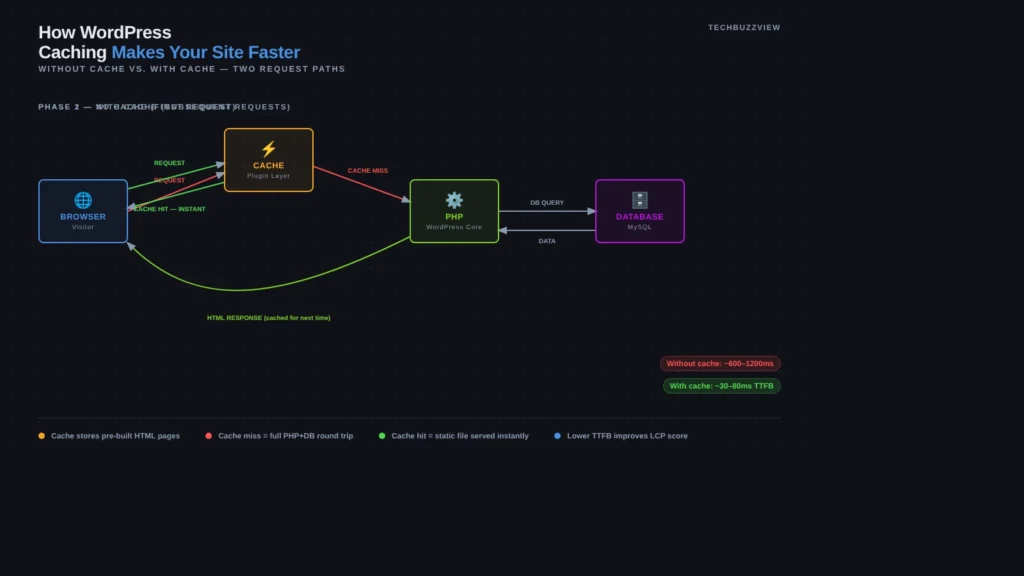
WordPress is dynamic by default: every visitor request triggers PHP execution and database queries before a page is served. Caching stores a pre-built copy of that output — HTML, CSS, database results, and objects — so future requests skip the PHP and database entirely.
From a Core Web Vitals standpoint, different caching layers affect different metrics:
- Page caching → reduces Time to First Byte (TTFB) and directly improves Largest Contentful Paint (LCP) — the metric that most affects your WordPress site speed score
- Object caching → reduces database query time, improves backend response across all pages
- Browser caching → reduces repeat-visit load time, affects LCP on returning users
- JS/CSS optimization → minification, delay-JS, and unused CSS removal directly affect Interaction to Next Paint (INP) and Cumulative Layout Shift (CLS)
No single plugin dominates every layer equally. Choosing the wrong one for your hosting stack means paying for optimizations you’ll never unlock.
WP Rocket — Best for Apache and Nginx Hosts
WP Rocket is the plugin most WordPress professionals reach for on Apache or Nginx hosting. It’s the only premium caching plugin in this list, and it earns its price by working well out of the box without requiring you to understand server internals.
Key Strengths
- Delay JavaScript execution: defers non-essential scripts until a user interaction, directly lowering INP scores
- Remove unused CSS: strips CSS rules not needed on a given page, reducing render-blocking and CLS
- LazyLoad: images, iframes, and videos load only when they enter the viewport
- Preloading: WP Rocket crawls and warms your cache automatically after you publish
- CDN integration: native support for RocketCDN and straightforward CNAME setup for Cloudflare
Performance in Practice
In one comparative test on the same Apache host, WP Rocket scored 99% on PageSpeed Insights versus LiteSpeed Cache’s 90%. That gap is largely due to WP Rocket’s unused CSS removal and JS delay features, which are the hardest front-end optimizations to replicate manually. On TTFB, the same test found LiteSpeed Cache slightly faster (148ms versus WP Rocket’s 165ms) — reflecting LiteSpeed Cache’s server-level page serving on a compatible host. Results vary significantly by hosting environment, theme, and plugin stack; treat these as indicative, not universal benchmarks.
Pricing
WP Rocket is paid-only, with no free tier. As of mid-2026, pricing is approximately $59/year for one site, $119/year for three sites, and $299/year for unlimited sites. Verify current pricing at wp-rocket.me before purchasing.
Limitations
- No free version — meaningful cost for single-site blogs
- Unused CSS removal can occasionally strip styles needed for above-the-fold content; needs testing after enabling
- No server-level TTFB advantage on Apache/Nginx — it’s an application-layer plugin
Who Should Use WP Rocket
Non-developers running WordPress on Apache or Nginx hosting (SiteGround, Cloudways, WP Engine, Bluehost, or similar) who want the fastest path to good Core Web Vitals without learning server configuration. Agency developers managing multiple client sites also get strong value from the unlimited license.
LiteSpeed Cache — Best Free Plugin, But Only on the Right Host
LiteSpeed Cache is the most-installed caching plugin in the WordPress ecosystem, with approximately 9.5% market share across active WordPress installations as of 2026. It is completely free and, on LiteSpeed or OpenLiteSpeed servers, delivers server-level caching that no PHP-layer plugin can match on TTFB.
Key Strengths
- Server-level page caching: on LiteSpeed hosts, cached pages bypass PHP and WordPress entirely — served directly by the web server
- Object cache: integrates with Redis and Memcached natively
- Image optimization: built-in WebP conversion and lazy loading without a separate plugin
- Critical CSS generation: helps LCP on first paint
- Free: no paid tier required for the full feature set
The Hosting Dependency
This is the critical caveat that many comparison articles skip: LiteSpeed Cache’s server-level features — the ones that actually distinguish it from other plugins — only activate on servers running LiteSpeed Web Server or OpenLiteSpeed. On Apache or Nginx, LiteSpeed Cache falls back to standard PHP-layer page caching and works similarly to W3 Total Cache or WP Super Cache. You get the CSS/JS optimization tools, but not the TTFB gains.
Hosts that use LiteSpeed servers include Hostinger, A2 Hosting, LiquidWeb, and several other shared/VPS providers. If you’re on one of these hosts, LiteSpeed Cache is arguably the best value in WordPress caching — free and faster on TTFB than WP Rocket in tests on the same LiteSpeed stack.
This article contains affiliate links — we may earn a commission at no extra cost to you.
If you want to get the full benefit of LiteSpeed Cache without paying for WP Rocket, pairing it with a LiteSpeed-based host (see our guide to migrating WordPress to Hostinger) is a cost-free path to significantly faster TTFB compared to Apache or Nginx shared hosting. Hostinger WordPress Hosting runs LiteSpeed servers and includes LiteSpeed Cache compatibility out of the box, which means server-level caching is available from your first WordPress install.
Limitations
- Server-level advantages disappear on Apache/Nginx — performance becomes comparable to other free plugins
- More configuration options than WP Rocket; some sections (ESI, API settings) are complex for beginners
- Image optimization quota: the CDN-based optimization has processing limits on the free plan
Who Should Use LiteSpeed Cache
Anyone on LiteSpeed-based hosting who doesn’t want to pay for WP Rocket. It’s also the right choice if you’re an agency developer standardizing on Hostinger or A2 Hosting for client sites — you get server-level performance at zero plugin cost.
W3 Total Cache — Best for Developers Who Need Full Control
W3 Total Cache is the most technically complete free caching plugin available. It covers every caching layer WordPress has — page, minify, database, object, browser, and CDN — and exposes each as a separate configurable component. That breadth is both its strength and its biggest liability.
Key Strengths
- All-layer coverage: the only free plugin that handles database caching and object caching alongside page and browser caching
- CDN integration: supports Amazon CloudFront, Stackpath, Cloudflare, and custom CDN origins
- Fragment caching: allows partial caching of dynamic page sections, useful for WooCommerce
- Edge Case Support: handles Nginx server blocks, Varnish pass-through, and multi-server environments
The Configuration Problem
W3 Total Cache is the plugin most commonly cited as the cause of broken WordPress sites after activation. The default settings are not optimized for most installations, and enabling database caching or object caching incorrectly can cause page rendering errors, logged-out sessions, or memory exhaustion on shared hosting. A developer who understands these layers can get excellent results; a site owner who enables everything and hopes for the best is likely to create problems.
The paid Pro tier, at approximately $99/year, adds support, extensions for Lazy Load, and Purge Log. For most use cases, the free tier is sufficient if you know what you’re doing.
Limitations
- Genuinely difficult to configure correctly without server knowledge
- Higher risk of site breakage than any other plugin in this list
- Interface hasn’t been significantly modernized — dense and intimidating for beginners
Who Should Use W3 Total Cache
Developers managing complex WordPress setups — WooCommerce stores with heavy database load, multisite networks, or sites running behind Varnish or a custom CDN — who need per-layer control. If you’re not comfortable reading your hosting control panel’s PHP error logs, this is not the right plugin for you.
WP Super Cache and WP Fastest Cache — Simpler Free Options
WP Super Cache is developed by Automattic (the company behind WordPress.com) and is one of the oldest caching plugins available. It covers page caching and browser caching with a straightforward interface, and it’s a reliable default for low-traffic blogs and simple brochure sites. It won’t move the needle on INP or CLS the way WP Rocket will, but it costs nothing and is unlikely to break anything.
WP Fastest Cache offers a free tier with basic page caching, minification, and browser caching, plus a paid lifetime license for around $49. The lifetime option is useful for developers who manage a handful of client sites and want to avoid annual subscription costs. Its feature set sits between WP Super Cache and W3 Total Cache — more capable than the former, significantly easier than the latter.
How to Choose: A Decision Framework by Hosting Type
You’re on LiteSpeed-based hosting (Hostinger, A2, LiquidWeb)
→ LiteSpeed Cache (free). You get server-level caching that no PHP plugin can match. No other plugin unlocks the same TTFB gains on this stack.
You’re on Apache or Nginx hosting and want the fastest results with minimal effort
→ WP Rocket. The JS delay and unused CSS removal features alone justify the cost if your site is revenue-generating. Enable it, run the setup wizard, and you’re done.
You’re on Apache or Nginx and need a free option
→ W3 Total Cache if you’re a developer comfortable with configuration; WP Super Cache or WP Fastest Cache if you want something you can activate and leave alone.
You’re on managed WordPress hosting (Kinsta, Flywheel, WP Engine)
→ Check first whether your host includes built-in server-level caching. Kinsta and WP Engine both cache at the infrastructure layer, and adding a WordPress caching plugin on top can cause conflicts. Many managed hosts recommend against third-party page caching plugins entirely — LiteSpeed Cache or WP Rocket may still be useful for JS/CSS optimization only, with page caching disabled.
You’re running WooCommerce
→ WP Rocket handles WooCommerce cart and checkout exclusions automatically. With LiteSpeed Cache, you’ll need to configure cart/checkout page exclusions manually to prevent caching logged-in sessions. W3 Total Cache’s fragment caching is the most powerful for WooCommerce, but requires developer configuration.
Installing and Activating: What to Expect
WP Rocket: download from wp-rocket.me, upload via Plugins → Add New → Upload Plugin, activate, and run through the Settings wizard. Most sites see Core Web Vitals improvements within minutes of activation. Test your checkout, login, and dynamic pages after enabling unused CSS removal.
LiteSpeed Cache: search and install directly from the WordPress plugin repository. On a LiteSpeed host, server-level caching activates automatically. Go to LiteSpeed Cache → Cache → Enable Cache. Verify in the browser developer tools (Network tab) that response headers include x-litespeed-cache: hit.
W3 Total Cache: install from the repository. Start with only Page Cache enabled and Disk: Enhanced as the method. Add additional layers one at a time, testing after each. Do not enable Database Cache on shared hosting without first confirming your host supports persistent object caching.
The Bottom Line
WordPress caching plugin recommendations that ignore hosting stack are incomplete. LiteSpeed Cache is free and genuinely the fastest option — but only on LiteSpeed servers. WP Rocket is the most reliable choice on the broadest range of hosts, and its front-end optimization features (JS delay, unused CSS) outperform anything in the free tier on Apache and Nginx. W3 Total Cache remains the right tool for developers who need control that paid plugins don’t expose.
If you’re starting fresh: check your host’s server software first (and review our WordPress security plugin guide while you’re setting up), then pick accordingly. If you’re switching plugins on a live site, always test on a staging environment before enabling on production.
Frequently Asked Questions
Can I run two caching plugins at the same time?
No. Running multiple caching plugins simultaneously causes conflicts, doubled cache files, and unpredictable behavior. Install one and disable or uninstall the others. The exception is using a caching plugin alongside a CDN plugin (like Cloudflare), which is a separate service layer.
Do I need a caching plugin on managed WordPress hosting?
Depends on the host. Kinsta, WP Engine, and Flywheel include server-level caching at the infrastructure layer. Adding a page caching plugin on top often conflicts with it. You may still benefit from a plugin’s JS/CSS optimization features with page caching disabled — check your host’s documentation first.
Does LiteSpeed Cache work on Hostinger?
Yes, and it works at the server level because Hostinger runs LiteSpeed Web Server. This means cached pages are served directly by the web server, bypassing PHP and WordPress entirely — which is faster than anything a PHP-layer plugin can achieve on the same host.
Is WP Rocket worth the price for a small blog?
For a blog generating no direct revenue, the free options are often sufficient — WP Super Cache or LiteSpeed Cache (on a compatible host) will get you to acceptable Core Web Vitals. WP Rocket’s value grows with the site’s complexity: JS-heavy themes, WooCommerce, and membership sites benefit most from its front-end optimization features.
How do I verify that caching is actually working?
Open your browser’s developer tools (F12), go to the Network tab, load a page, and inspect the response headers of the main HTML document. A cached response from WP Rocket shows x-cache: HIT; LiteSpeed Cache shows x-litespeed-cache: hit; W3 Total Cache adds a comment at the bottom of the HTML source indicating cache status. You can also use Google PageSpeed Insights and check your TTFB before and after enabling caching.