
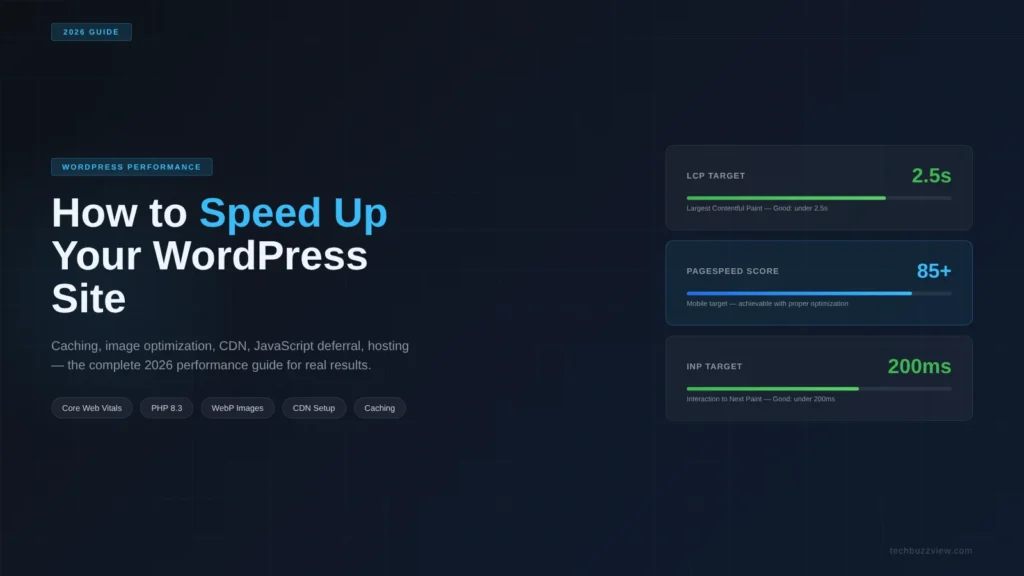
A slow WordPress site doesn’t just frustrate visitors—it actively costs you rankings, conversions, and ad revenue.
Google uses Core Web Vitals as a ranking factor, and PageSpeed is the most visible of its inputs. Slow sites see higher bounce rates, lower session durations, and worse Quality Scores if you’re running paid traffic. For AdSense publishers, page speed directly affects viewability and fill rates.
The good news: most WordPress sites have five to ten specific, addressable performance problems. This guide covers each one with practical steps you can take today—starting with the highest-leverage fixes first.
Step 1: Measure Before You Fix
Before changing anything, establish a baseline. You need numbers you can compare against after each change.
Use these two tools:
- PageSpeed Insights (free, uses real-user CrUX data alongside lab tests): Run your homepage, a post page, and a category page. Note the mobile scores—desktop scores are consistently 20–30 points higher and don’t reflect where most traffic comes from.
- WebPageTest (free, Dulles VA): Run a test on Slow 4G throttling to simulate a realistic mobile connection. Note your LCP, CLS, and TTFB.
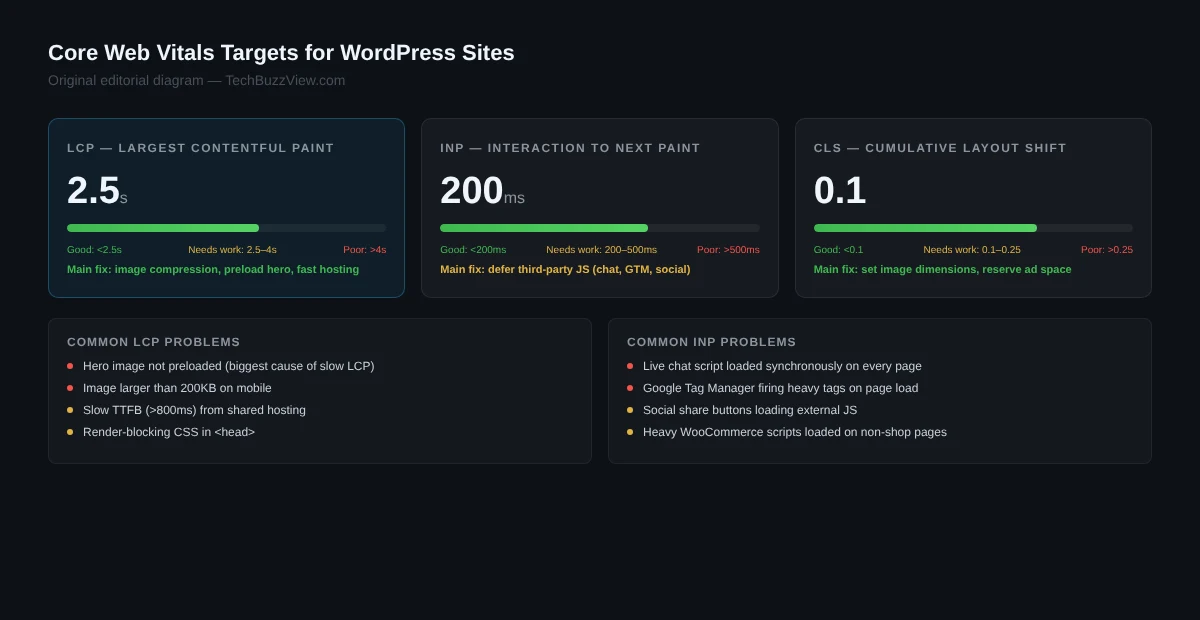
Core Web Vitals targets to aim for:
- LCP: Under 2.5 seconds (good)
- INP: Under 200ms (good)
- CLS: Under 0.1 (good)
- TTFB: Under 800ms for a good server response time
Save a screenshot of your baseline scores. You’ll refer to these as you work through each optimization below.
Step 2: Check Your PHP Version
This is the lowest-effort, highest-impact server-side change most WordPress site owners haven’t made. PHP 8.3 (the current stable release as of 2026) is measurably faster than PHP 7.4 or 8.0—benchmarks cited by multiple hosting providers show 15–25% backend speed gains compared to PHP 7.4.
To check your current PHP version:
- Log into your hosting control panel (cPanel, hPanel, or equivalent)
- Look for “PHP Version” or “PHP Configuration” in the Software section
- If you’re below PHP 8.1, upgrade to 8.3
Before upgrading, check your theme and plugin compatibility. Most reputable plugins updated in the past year support PHP 8.x. Test on a staging environment first if your host provides one.
Step 3: Install a Caching Plugin
WordPress generates pages dynamically by querying the database and running PHP on each request. Caching serves a saved HTML version of each page instead of regenerating it for every visitor. This is typically the single biggest speed improvement for most WordPress sites.
Three commonly used options:
- WP Super Cache (free): Simple, reliable, works well for most blogs and content sites. Generates static HTML files served directly by the web server without PHP execution.
- W3 Total Cache (free, advanced): More configuration options including object caching (Redis/Memcached), database caching, and CDN integration. More complex to configure correctly.
- LiteSpeed Cache (free): Best results on hosts running LiteSpeed web server. Includes image optimization, LQIP, and CDN functionality built in.
Important: Don’t install multiple caching plugins simultaneously. They conflict and can produce blank pages or broken layouts. If your host already provides server-level caching, an additional caching plugin may be redundant—check with your host first.
Step 4: Optimize Your Images
Images are typically the largest component of a web page by file size, and unoptimized images are the most common cause of poor mobile performance scores.
Convert to WebP
WebP images are 25–35% smaller than JPEG at equivalent quality, and 50–60% smaller than PNG for photos. All modern browsers support WebP. Converting your existing image library can reduce total page weight dramatically.
For automatic conversion:
- Smush (free tier available): Compresses and converts images on upload.
- ShortPixel: Converts and serves WebP via CDN. Free credits for 100 images/month.
- LiteSpeed Cache: Converts on the fly if using a LiteSpeed server.
Enable Lazy Loading
WordPress added native lazy loading via the loading="lazy" attribute in version 5.5. If you’re on WordPress 5.5 or newer, core images are lazy loaded by default. Verify this is working by inspecting the HTML of a post with many inline images.
Specify Image Dimensions in HTML
Images without explicit width and height attributes cause Cumulative Layout Shift. WordPress handles this automatically for images added through the media library, but images added via custom code or third-party plugins may be missing these attributes.
Step 5: Use a CDN
A Content Delivery Network serves static assets from servers geographically close to your visitors, reducing latency. Cloudflare’s free tier is the most widely used CDN for WordPress sites and handles static asset caching, Brotli and GZIP compression, and basic DDoS protection.
To set up Cloudflare free:
- Create an account at cloudflare.com
- Add your site and change your domain’s nameservers to Cloudflare’s
- Enable Caching → Cache Rules for static assets
- Enable Speed → Auto Minify for JavaScript, CSS, and HTML
Many managed WordPress hosts include a built-in CDN with their hosting plans. Hostinger’s managed WordPress hosting plans include LiteSpeed server technology with built-in caching and CDN, which can simplify the setup considerably compared to configuring these tools separately.
Step 6: Defer JavaScript and Minimize Render-Blocking Resources
JavaScript files loaded synchronously in the <head> block page rendering until they finish downloading and executing. This is one of the most common causes of poor LCP and INP scores.
Defer Non-Critical Scripts
Add defer or async attributes to scripts that don’t need to run before page render. In WordPress, you can do this with a caching plugin (W3 Total Cache) or through a plugin like Async JavaScript.
Scripts to prioritize deferring:
- Live chat widgets (Intercom, Drift, Tidio)
- Google Tag Manager (the container itself; tags inside need individual evaluation)
- Social share buttons scripts
- Third-party analytics beyond GA4’s core snippet
Remove Unused Plugins
Each active WordPress plugin can add CSS files, JavaScript files, and database queries to every page load. A plugin that adds its scripts globally rather than only on the pages it’s needed on is a common performance problem.
Audit your active plugins: if you haven’t used a plugin’s functionality in the past month, deactivate and delete it. Use the Health Check & Troubleshooting plugin to test deactivation safely without breaking your live site.
Step 7: Optimize Your Database
WordPress stores post revisions, draft posts, expired transients, and spam comments in the database. Over time, these accumulate and slow down queries—especially on high-traffic sites or active WooCommerce stores.
Clean your database periodically with WP-Optimize (free): it removes post revisions, cleans transients, and runs OPTIMIZE TABLE on database tables.
For sites with heavy WooCommerce usage, a Redis or Memcached object cache (available on many managed hosting plans) caches database query results in memory, dramatically reducing database load for repeated queries.
Step 8: Choose the Right Hosting
Hosting is the foundation that determines your ceiling. No amount of caching and optimization will fully compensate for an underpowered shared hosting server.
The practical test: if your TTFB is consistently above 1 second on WebPageTest with nothing else on the page, your hosting tier is likely the bottleneck. Managed WordPress hosting with built-in server-level caching (such as LiteSpeed-based plans on Hostinger or other managed WP providers) typically reduces TTFB to under 200ms.
Step 9: Use a Lightweight Theme
Theme bloat is a common and under-diagnosed performance problem. Many commercial themes load large CSS frameworks, multiple JavaScript libraries, and dozens of web fonts—most of which aren’t used on any given page.
Lightweight themes that consistently perform well on Core Web Vitals benchmarks:
- GeneratePress: ~30KB load, highly customizable, explicitly optimized for performance
- Astra: ~50KB load, wide plugin compatibility (Elementor, Gutenberg)
- Kadence: Fast, good for block-based editing, clean output
Step 10: Check Your Core Web Vitals in Google Search Console
After implementing changes, verify the real-world impact using Google Search Console’s Core Web Vitals report (under Experience → Core Web Vitals). Unlike lab tools, Search Console shows actual data from real users on your site.
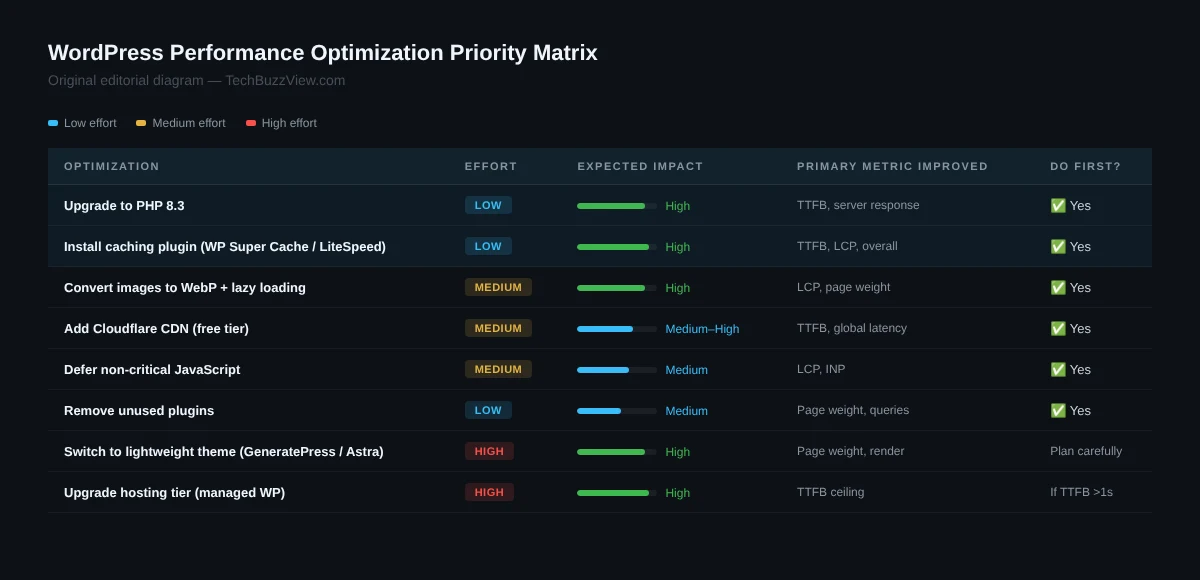
WordPress Performance Checklist
| Fix | Effort | Expected Impact |
|---|---|---|
| Upgrade to PHP 8.3 | Low | High (15–25% backend speed, per hosting benchmarks) |
| Install caching plugin | Low–Medium | High (page generation time) |
| Convert images to WebP + lazy load | Medium | High (page weight, LCP) |
| Add Cloudflare CDN | Medium | Medium–High (TTFB, latency) |
| Defer non-critical JavaScript | Medium | Medium (LCP, INP) |
| Remove unused plugins | Low | Medium |
| Clean database | Low | Low–Medium (DB query time) |
| Switch to lightweight theme | High | High (page weight, render) |
| Upgrade hosting tier | High | High (TTFB ceiling) |
Frequently Asked Questions
What’s the fastest way to improve a WordPress site’s PageSpeed score?
Start with caching, image optimization to WebP, and deferring non-critical JavaScript. These three changes address the most common reasons WordPress sites score poorly on PageSpeed Insights without requiring hosting changes or theme replacements.
Does WordPress hosting really affect performance that much?
Yes—Time to First Byte is directly determined by server response time, and shared hosting servers under load can have TTFB of 1–3 seconds before any page content is delivered. A managed WordPress host typically reduces TTFB to under 200ms.
Can I use multiple caching plugins at once?
No. Multiple caching plugins conflict with each other. Use one caching plugin. If your host has server-level caching, check whether an additional plugin adds anything or creates conflicts.
Do Core Web Vitals directly affect my Google rankings?
Core Web Vitals are a confirmed ranking signal as part of Google’s Page Experience update, but content relevance and quality remain the primary ranking factors. Poor performance can suppress an otherwise strong page, particularly for comparable queries where other signals are similar.
How do I know if my WordPress site is fast enough?
Aim for LCP under 2.5 seconds on mobile, INP under 200ms, and CLS under 0.1 as measured in PageSpeed Insights or Google Search Console. A mobile PageSpeed score above 70 is a reasonable general target; above 85 is good.