
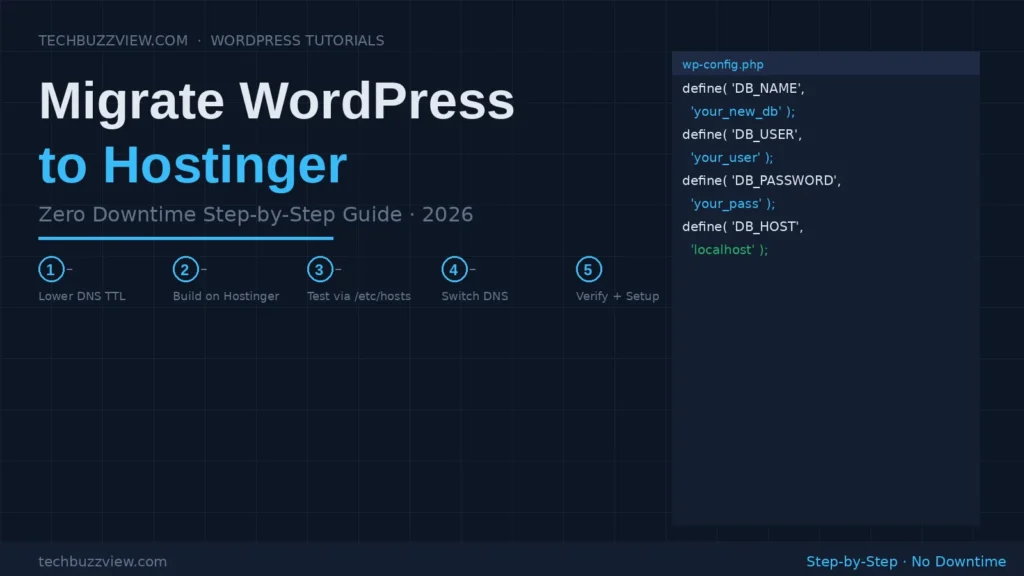
Migrating your WordPress site to Hostinger doesn’t have to mean hours of downtime or a botched database import. With the right sequence—and a bit of DNS prep done 48 hours in advance—you can switch hosts while keeping your live site running the entire time.
This guide covers three migration methods (Hostinger’s free managed migration, the plugin-based approach, and manual), the zero-downtime DNS cutover sequence, and the most common errors that break sites during migration. It uses current documentation verified against Hostinger’s hPanel and official guides.
Before You Start: Choose Your Migration Method
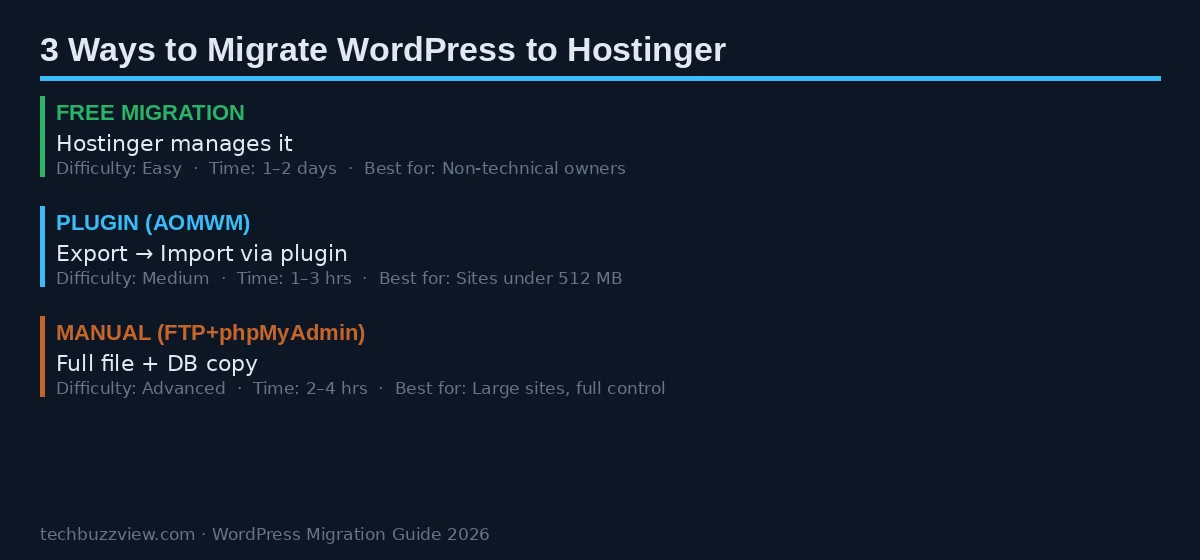
There are three ways to migrate WordPress to Hostinger. Which one is right for you depends on your technical comfort and how much time you want to spend:
Method 1: Hostinger Free Managed Migration
Hostinger includes free website migration on Premium Shared plans and above as of 2026. You submit a request and their team handles the transfer—no technical work required on your end.
How to Request a Free Migration
- Log in to your Hostinger account and open hPanel
- Navigate to Account → Migrate Website
- Fill in your current host details, login credentials for that host’s control panel, and your domain name
- Before submitting: disable two-factor authentication and any anti-bot/CAPTCHA protections on your current host’s panel
- Submit the request. The migration typically completes within 1–2 business days
What Hostinger migrates: WordPress files, database, and most plugin/theme configurations. Verify SSL, email configuration, and permalink settings after the migration completes.
Method 2: Plugin-Based Migration (All-in-One WP Migration)
This is the most practical approach for most site owners who want hands-on control without the complexity of manual file transfers.
Step 1: Export Your Site from the Old Host
- Install the All-in-One WP Migration plugin on your current WordPress site
- Go to All-in-One WP Migration → Export → Export to File
- Wait for the export to complete. The free version exports sites up to 512 MB. If your site is larger, you’ll need the Unlimited extension or the manual method below
- Download the .wpress export file to your computer
Step 2: Install Fresh WordPress on Hostinger
- In hPanel, go to Websites → Add Website
- Choose WordPress installation. Hostinger installs a clean WordPress instance automatically
- Note your new site’s temporary URL or IP address — you’ll use this to access the new site before pointing your domain
Step 3: Import to Hostinger
- Log in to the WordPress admin on your new Hostinger site using the temporary URL
- Install All-in-One WP Migration on the new site
- Go to All-in-One WP Migration → Import → Import from File
- Upload your .wpress export file. This replaces the fresh WordPress installation with your actual site
- After import completes, log in with your original WordPress credentials (the import overwrites the temporary admin user)
Method 3: Manual Migration (phpMyAdmin + FTP)
Use this method for large sites, or when you want precise control over what gets moved.
Step 1: Export Your Database
- Log in to your current host’s cPanel and open phpMyAdmin
- Select your WordPress database from the left sidebar
- Click Export → Quick → Go. Download the .sql file
Step 2: Copy WordPress Files
- Connect to your old host via FTP (using FileZilla or similar)
- Download your entire
public_htmlorwwwdirectory to your computer
Step 3: Set Up the New Host
- In Hostinger’s hPanel, create a new MySQL database under Databases → MySQL Databases. Note the database name, username, and password
- Upload all WordPress files to your Hostinger directory via FTP or hPanel’s File Manager
- Import your .sql file via hPanel’s phpMyAdmin: select the new database, click Import, and upload the file
Step 4: Update wp-config.php
Open wp-config.php in File Manager and update these three lines with your new Hostinger database credentials:
define( 'DB_NAME', 'your_new_db_name' );
define( 'DB_USER', 'your_new_db_user' );
define( 'DB_PASSWORD', 'your_new_db_password' );
define( 'DB_HOST', 'localhost' );
The Zero Downtime DNS Cutover
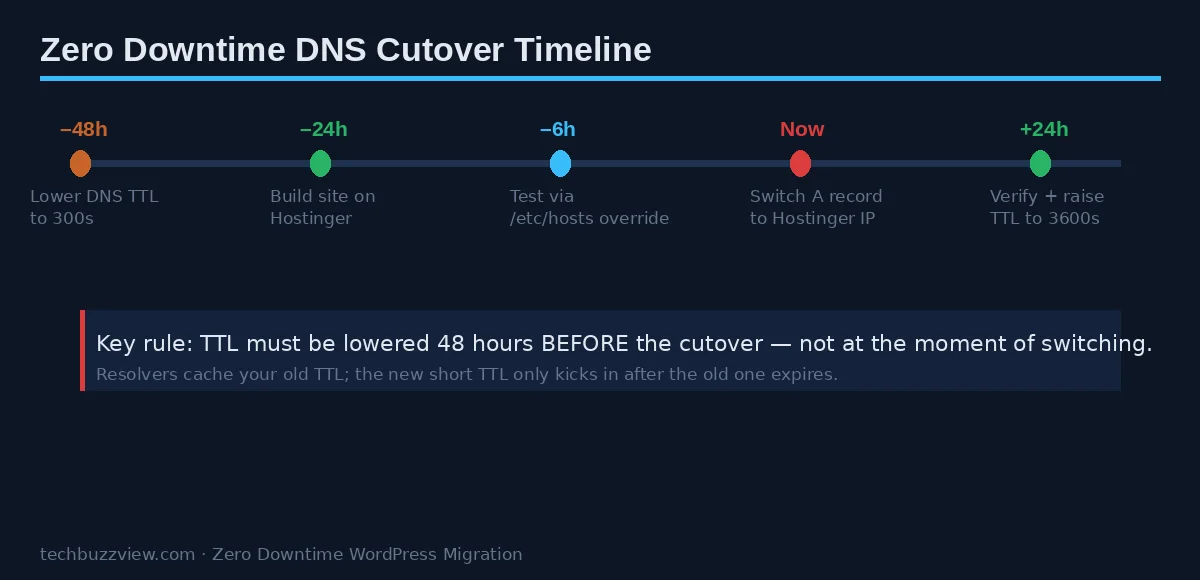
This is the part most guides skip—and it’s where sites get knocked offline unnecessarily. The key principle: DNS TTL changes must happen 48 hours before your cutover, not at cutover.
48–72 Hours Before Migration
- Log in to your domain registrar or DNS provider (wherever your A records live—Cloudflare, GoDaddy, Google Domains, etc.)
- Find your domain’s A record and lower the TTL to 300 seconds (5 minutes)
- Save. This tells DNS resolvers to re-check the record every 5 minutes once you change it—so propagation will be fast at cutover
Test the New Site Before Switching DNS
Before touching DNS, verify your new Hostinger site works correctly by temporarily pointing your local machine at it:
- Find your Hostinger server IP in hPanel (under your website’s hosting plan details)
- On Mac/Linux, edit
/etc/hostsand add:YOUR.HOSTINGER.IP yourdomain.com www.yourdomain.com - On Windows, edit
C:\Windows\System32\drivers\etc\hostswith the same line - Visit yourdomain.com in your browser—your machine will now load it from Hostinger. Test all pages, forms, logins, and media
- Remove the hosts file entry when done testing
DNS Cutover
- At your DNS provider, change the A record for your domain to your Hostinger server IP
- Update the www CNAME to point to your root domain
- Keep your old host active for 24–48 hours. Some visitors whose ISPs cached the old IP will still hit your previous host during propagation
- After 24 hours, verify your domain is loading from Hostinger across multiple locations using a tool like dnschecker.org
After Full Propagation
- Raise TTL back to 3600 (1 hour) or 86400 (24 hours)
- Verify Hostinger’s Let’s Encrypt SSL certificate has been issued (hPanel → SSL)
- Force HTTPS in hPanel settings
- Cancel or downgrade your old hosting plan
Post-Migration Setup Checklist
Fix Permalinks First
The most common post-migration issue is 404 errors on all pages except the homepage. In WordPress admin, go to Settings → Permalinks and click Save Changes without changing anything. This flushes the rewrite rules for your new server environment.
Activate LiteSpeed Cache
Hostinger’s shared hosting runs on LiteSpeed servers. The LiteSpeed Cache plugin (pre-installed on Hostinger’s WordPress setup) is the single most effective performance improvement for your site. Activate it and run a full cache purge from the plugin settings.
Verify SSL and HTTPS Redirects
- In hPanel, go to Hosting → SSL and confirm the Let’s Encrypt certificate shows as active
- Enable Force HTTPS in hPanel
- In WordPress admin, verify Settings → General shows https:// URLs
- If migrating from Cloudflare, re-add your domain and set SSL mode to Full (Strict)
Check PHP Version
In hPanel, go to Advanced → PHP Configuration and verify your PHP version. Hostinger supports PHP 8.1, 8.2, and 8.3. If your old host was running PHP 7.4 or 8.0, test your site on the newer version before locking it in—older plugins may have compatibility issues with PHP 8.3’s stricter type handling.
Email: Preserve MX Records
If your email runs through Google Workspace, Microsoft 365, or another provider, your MX records must not be overwritten when you switch to Hostinger’s nameservers. In hPanel’s DNS Zone Editor, verify your MX records match your email provider’s specifications exactly. Missing this step is the most common cause of lost email after migration.
Common Migration Errors and Fixes
| Error | Cause | Fix |
|---|---|---|
| 404 on all pages | Rewrite rules not set | Settings → Permalinks → Save Changes |
| SSL not loading / mixed content | Old SSL rules or http:// URLs in database | Issue new cert in hPanel; run Better Search Replace to update URLs |
| White screen of death | PHP version incompatibility | Lower PHP version in hPanel → Advanced → PHP Configuration |
| Missing images | File permissions incorrect | Set files to 644, folders to 755 in File Manager |
| Can’t log in after import | Import replaced admin user | Use your original WordPress credentials |
| Site loads slowly | LiteSpeed Cache not activated | Install and activate LiteSpeed Cache plugin; run full purge |
Is Hostinger Right for Your Site?
Hostinger is a strong choice for small-to-medium WordPress sites: fast LiteSpeed servers, free SSL and CDN, competitive renewal pricing, and responsive support. Their 48-month promotional pricing is compelling; renewal rates are significantly higher (Premium renews around $10.99/month vs. the promotional rate).
For the majority of small business sites, portfolios, and content sites under moderate traffic, Hostinger’s Business Shared plan offers the best feature set: daily backups, staging environment, LiteSpeed optimization, and free managed migration to get you started. If your site has significant traffic (over 50K monthly visitors on shared hosting) or you need dedicated server resources, Hostinger’s Cloud or VPS plans are worth comparing against Cloudways or WP Engine before you migrate.