
This article contains affiliate links. We may earn a commission at no extra cost to you.
Losing a WordPress site to a hack, a failed update, or a hosting incident is devastating — and entirely preventable. The right backup plugin runs automatically, stores copies off your server, and lets you restore in minutes, not days. UpdraftPlus is the best free option for bloggers and small businesses; BlogVault is the stronger choice for business sites and WooCommerce stores that need offsite, server-independent backups; BackupBuddy suits legacy WordPress setups; and Duplicator is ideal when you need migrations and backups from one tool.
Quick Comparison: Top WordPress Backup Plugins in 2026
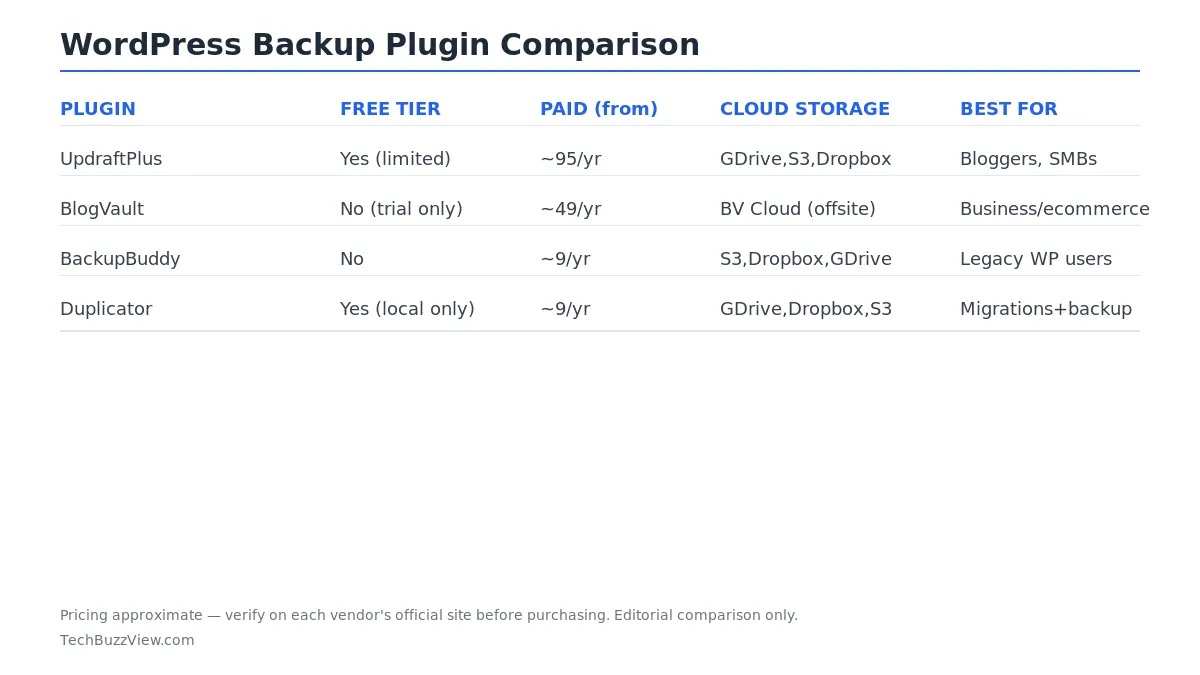
All four plugins can back up both WordPress files and the database — the two components you need for a complete restore. The differences come down to free-tier depth, cloud storage support, restore reliability, and whether you’re running a simple blog or a revenue-generating store.
Why WordPress Backups Matter (and What Can Go Wrong)
WordPress powers over 43% of all websites, which also makes it the most-targeted CMS by attackers. Common failure scenarios include: a plugin update breaking the site, a theme conflict wiping content, a hosting server failure, or an unauthorized login that encrypts your files. Without a recent off-server backup, recovery means rebuilding from scratch.
Your hosting provider likely takes periodic snapshots, but those aren’t substitutes for a dedicated backup plugin. Hosting snapshots may not be granular, may not be accessible quickly in an emergency, and — critically — if your hosting account itself is compromised, those snapshots may be at risk too. An independent off-server backup stored in Google Drive, Amazon S3, or Dropbox is the safest foundation.
Related: How to Speed Up Your WordPress Site (2026 Performance Guide) — a fast, optimized WordPress site is also a more resilient one.
UpdraftPlus — Best Free WordPress Backup Plugin
UpdraftPlus is the most widely installed WordPress backup plugin, with over 3 million active installs and a 4.8/5 rating on WordPress.org as of mid-2026. Its free version is genuinely useful — not a crippled teaser — making it the default starting point for most WordPress site owners.
What the Free Version Includes
- Manual and scheduled backups (files + database separately)
- Cloud storage to Google Drive, Dropbox, Amazon S3, and Rackspace
- One-click restore from within the WordPress dashboard
- Backup encryption (database)
- One remote storage destination per backup job
The key limitation of the free tier: incremental backups are not available (each backup copies everything), and you can only send backups to one cloud destination at a time. For a small blog updated once a week, this is rarely a problem. For a site with frequent content changes or a large media library, the full-site backup approach means each job takes longer and uses more storage.
UpdraftPlus Premium: What You Get
According to UpdraftPlus documentation, the premium upgrade adds:
- Incremental backups — only changed files are copied, keeping backup jobs fast
- Multiple simultaneous cloud destinations (backup to Google Drive and S3, for example)
- Additional storage targets: Microsoft OneDrive, Azure, WebDAV, SFTP, Backblaze, pCloud
- Automatic backup before plugin and theme updates
- One-click site migration (UpdraftMigrator)
- Restore individual site components (database only, plugins only, etc.)
- 1GB of UpdraftVault cloud storage included
Premium pricing tiers were listed by third-party reviewers in the $195–$399/year range for personal and business licenses as of this writing. Verify current prices directly at updraftplus.com before purchasing.
Setting Up UpdraftPlus Free with Google Drive (Step-by-Step)
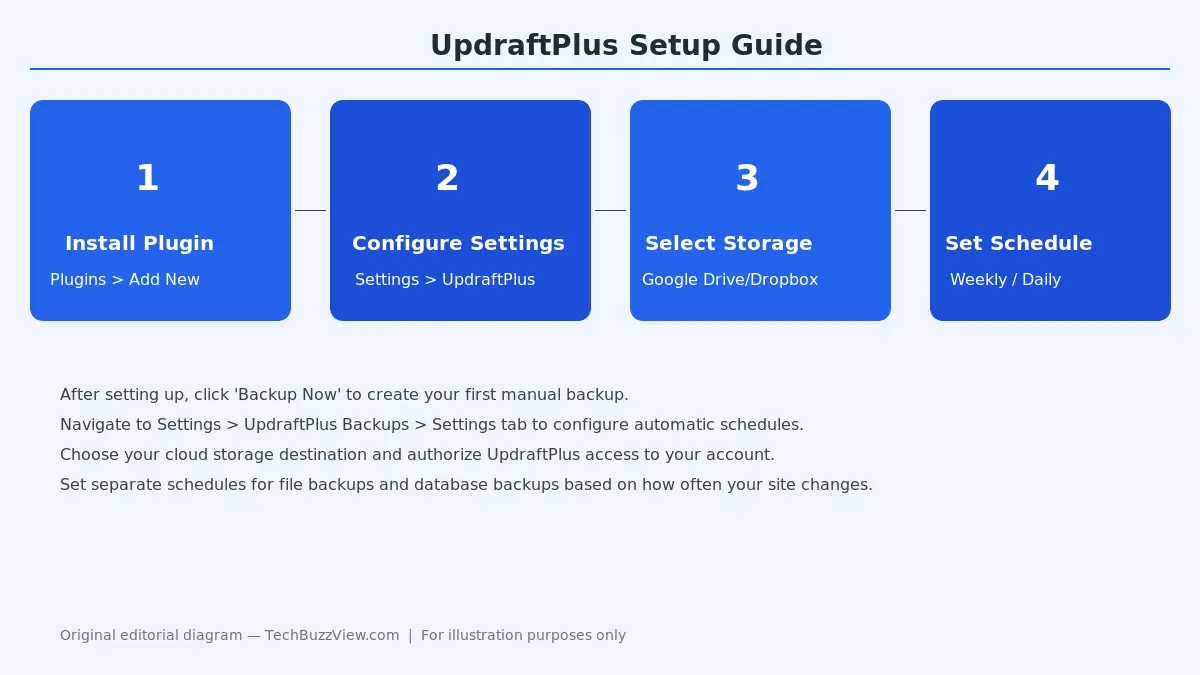
- Install and activate: Go to Plugins > Add New, search “UpdraftPlus”, install and activate the free version.
- Open settings: Navigate to Settings > UpdraftPlus Backups > Settings tab.
- Choose cloud storage: Select Google Drive, click “Authenticate with Google”, and authorize UpdraftPlus to access your Drive account. Your backups will appear in an UpdraftPlus folder.
- Set your schedule: Set separate schedules for files (e.g., weekly) and the database (e.g., daily). For an active blog, daily database backups with weekly full-file backups is a reasonable starting point.
After saving, click “Backup Now” to verify your first backup completes and appears in Google Drive before relying on the scheduled automation.
Who Should Use UpdraftPlus
- Free version: Bloggers, portfolios, informational sites, and small businesses that update content weekly or less frequently.
- Premium: Content-heavy sites, WooCommerce stores where orders come in daily, agencies managing multiple client sites.
- Skip it if: You need real-time (transaction-level) backups for a high-volume store — BlogVault handles that better.
BlogVault — Best for Business Sites and WooCommerce
BlogVault takes a different architectural approach: backups run on BlogVault’s own servers, not on your hosting infrastructure. This means backup jobs don’t consume your server’s CPU or memory during the backup process, and your backups are never on the same server as your live site — a meaningful security separation.
Key Features
- Off-server backup: BlogVault syncs your site data to its own cloud, not a third-party storage account you configure
- Real-time WooCommerce backups: The WooCommerce plan captures order and inventory changes in near real-time, so a store failure doesn’t cost you recent transactions
- Built-in staging: Test plugin updates, theme changes, or custom code on a staging copy before applying to live
- MigrateGuru integration: One-click migrations to a new host with no data loss
- Malware scanning: Included on higher plans; flags file-level changes that indicate compromise
Pricing and Plans
BlogVault has no free tier — it offers a 7-day free trial. Based on available 2026 listings, plans start around $149/year for a single site with daily backups and 90-day retention. The WooCommerce plan (real-time backups, full staging, higher storage) is priced higher, around $499/year for one site. Verify the current plan structure at blogvault.net — tiering and naming have changed in recent iterations.
Who Should Use BlogVault
- WooCommerce stores where losing even one hour of orders is costly
- Business sites that can’t afford downtime during restore
- Teams that need staging to safely test updates before going live
- Skip it if: You need a free solution or are running a personal blog — the price-to-value ratio favors UpdraftPlus for simpler sites.
BackupBuddy — The Legacy Choice with Strong Restore Tools
BackupBuddy, now developed by SolidWP (formerly iThemes), is one of the original premium WordPress backup plugins and has a large installed base. Its standout feature is ImportBuddy — a standalone PHP-based restore tool that can rebuild a WordPress site on a blank server without requiring a working WordPress installation, which is valuable when a site fails at the framework level.
Features Overview
- Complete site backups (files + database)
- Cloud storage: Amazon S3, Dropbox, Google Drive, Rackspace, FTP/SFTP
- ImportBuddy standalone restore script
- Real-time malware scan option (on higher plans)
- Backup before updates (plugin/theme/WordPress core)
- Stash Live (real-time cloud backup) on premium plans
Pricing
BackupBuddy is available at approximately $99/year for a single site based on available 2026 sources. There is no free tier. Check solidwp.com for current pricing, as plan structures under the SolidWP umbrella have been updated.
Who Should Use BackupBuddy
- WordPress developers and agencies already in the iThemes/SolidWP ecosystem
- Sites that need robust server-level restore capability via ImportBuddy
- Skip it if: You need a free solution or want the lowest possible entry price — UpdraftPlus offers more for less.
Duplicator — Best for WordPress Migrations with Backup
Duplicator approaches the problem from a different angle: it was built primarily as a migration and cloning tool, with backup functionality added. If you regularly move sites between hosts, spin up staging environments, or clone sites for clients, Duplicator’s workflow is more purpose-built than UpdraftPlus’s migration add-on.
Free vs Pro
The free version of Duplicator creates a full site package (files + database) but stores it locally on your server only — you’d need to manually download it. Duplicator Pro adds cloud storage destinations (Google Drive, Dropbox, Amazon S3) and scheduled automated backups. The Pro tier starts around $69/year for a single site based on available listings, though licensing is per-site.
Who Should Use Duplicator
- Developers who frequently migrate sites between environments (local → staging → live)
- Agencies cloning a base install for multiple clients
- As a pure backup tool: The free version’s local-only storage is a limitation; UpdraftPlus free is more useful for ongoing backup automation at no cost.
How to Choose the Right WordPress Backup Plugin
The right plugin depends on two primary factors: your site type and your budget.
| Your situation | Recommended plugin |
|---|---|
| Personal blog or portfolio, free tier needed | UpdraftPlus Free |
| Small business site, willing to pay for peace of mind | UpdraftPlus Premium or BackupBuddy |
| WooCommerce store, need real-time backups + staging | BlogVault (WooCommerce plan) |
| Agency or developer moving sites often | Duplicator Pro |
| Business site, need minimal server impact during backup | BlogVault |
Also consider your hosting environment. If you’re on a managed WordPress host like Hostinger (which includes daily automated backups on its Business and higher plans — see our best web hosting for small business 2026 guide), your host’s backup may cover basic recovery needs. A plugin still makes sense for on-demand backups before risky changes and for additional off-server redundancy.
WordPress Backup Best Practices
Regardless of which plugin you choose, these practices apply:
Follow the 3-2-1 Rule
Keep at least 3 copies of your data, on 2 different types of storage, with 1 offsite (cloud). Most backup plugins make 2-1 easy (local + one cloud); adding a second cloud destination (available in UpdraftPlus Premium and BackupBuddy) achieves the full 3-2-1.
Test Restores Regularly
A backup is only as good as your ability to restore from it. Test your restore process on a staging site or a local environment at least once per quarter. Discovering a corrupt backup when your live site is down is the worst time to find out.
Match Backup Frequency to Content Change Rate
- Static informational site: Weekly file backup, daily database backup
- Active blog (daily posts): Daily full backup
- WooCommerce store: Real-time or hourly database backup; daily file backup
Always Back Up Before Major Changes
Before updating WordPress core, switching themes, or installing new plugins, trigger a manual backup. UpdraftPlus Premium and BackupBuddy both offer automatic pre-update backups; the free UpdraftPlus version lets you trigger one manually from the dashboard in about 2 minutes.
Related: How to Migrate WordPress to Hostinger (2026) — before any host migration, having a fresh backup via one of these plugins is essential.
Motion Explainer: How WordPress Backup Works
Frequently Asked Questions
Is UpdraftPlus free really good enough?
For most personal blogs and small informational sites, yes. The free version backs up files and the database to Google Drive, Dropbox, or S3, and restores in one click. The main gaps are no incremental backups and only one storage destination — acceptable tradeoffs for a site that changes infrequently.
Does WordPress have a built-in backup feature?
WordPress core has an XML export for content only — it doesn’t back up your theme, plugins, media files, or database structure. A dedicated backup plugin is necessary for a complete, restorable copy of your site.
How much storage do WordPress backups take?
It depends on your media library. A text-focused blog might be 50–200MB per backup. A WooCommerce store with product images could run 1–5GB+. Use incremental backups (UpdraftPlus Premium or BlogVault) once your site grows past 500MB to keep storage consumption manageable.
Can I use my hosting’s backup instead of a plugin?
Hosting backups are a good supplement but not a substitute. Hosting providers typically take daily snapshots, but restore procedures often go through support tickets, retention windows are shorter, and the backup is on the same infrastructure as your site. A plugin backup stored in an independent cloud account gives you faster self-service restore and true offsite redundancy.
Bottom line: Start with UpdraftPlus free if you need zero-cost protection and have Google Drive or Dropbox available. Upgrade to premium or move to BlogVault once your site generates revenue or receives daily traffic you can’t afford to lose. Use Duplicator if migrations are a core part of your workflow. Whatever you choose, test a restore before you actually need it.
Looking for the right hosting to pair with your backup strategy? Our best web hosting for small business guide covers providers with strong built-in backup features, including Hostinger, SiteGround, and WP Engine.