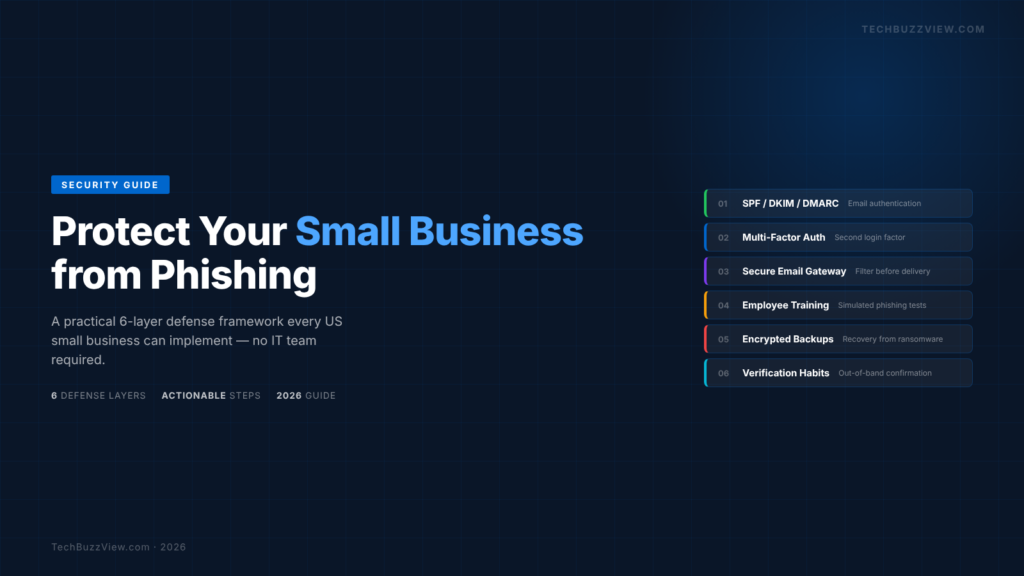
The single most effective way to protect your small business from phishing is to layer your defenses. No single tool stops every attack — but a business with email authentication (SPF/DKIM/DMARC), multi-factor authentication, a secure email gateway, trained employees, encrypted backups, and verification habits in place is dramatically harder to compromise than one relying on a single tool. This guide walks through each of those six layers with practical steps a non-technical business owner can implement today.
Phishing — deceptive emails designed to trick people into clicking malicious links, entering credentials, or wiring money — remains the leading entry point for cyberattacks on US small businesses. According to Panda Security, citing a UK government survey, around 46% of small businesses reported a cyber breach or attack in the previous 12 months (UK figure; US rates are directionally similar). Many security vendors estimate that 90–96% of cyberattacks begin with a phishing email, though this figure varies by source and should be treated as directional.
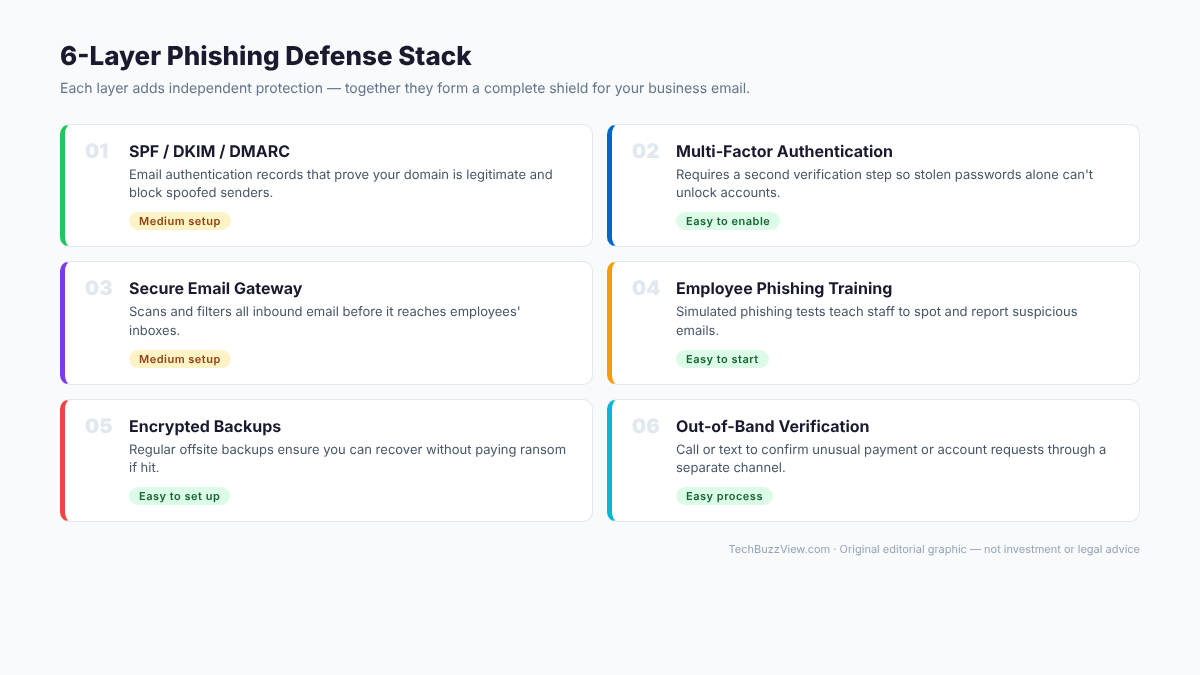
The good news: most of these layers are free or very low cost, and you don’t need an in-house IT team to set them up. Let’s work through each one.
Layer 1: Email Authentication — SPF, DKIM, and DMARC
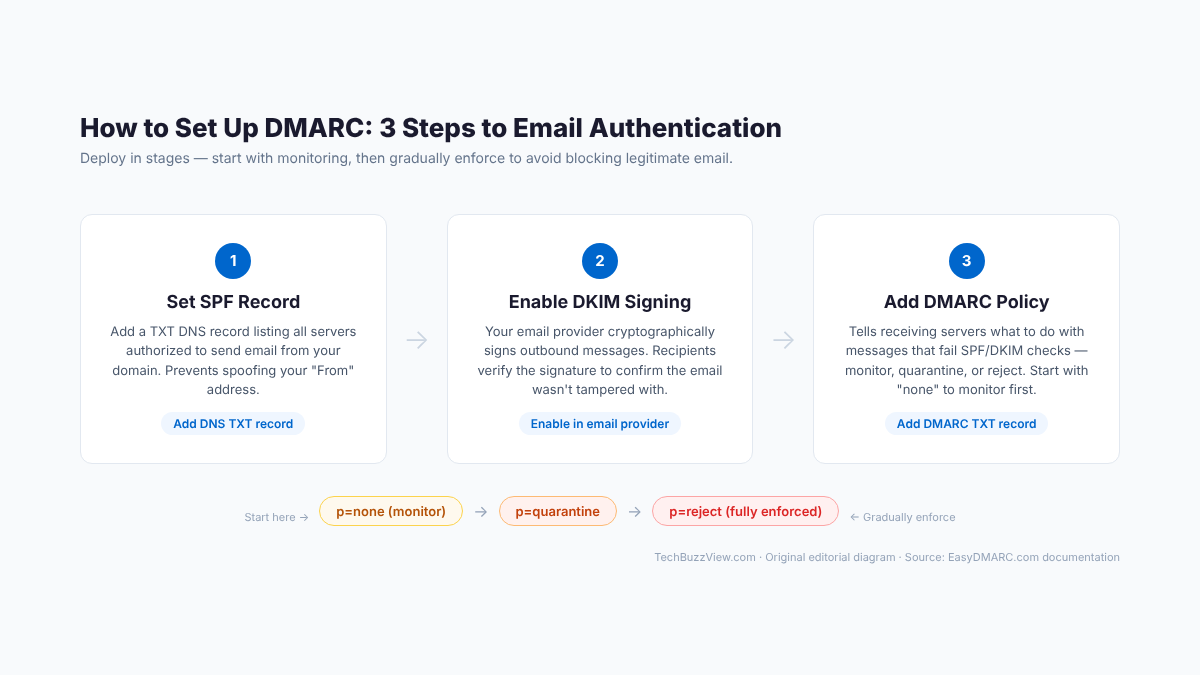
What it is: Three DNS records that together prove your email domain is legitimate and prevent attackers from sending emails that appear to come from your domain. SPF (Sender Policy Framework) lists the servers authorized to send email for your domain. DKIM (DomainKeys Identified Mail) cryptographically signs outgoing messages. DMARC tells receiving servers what to do with messages that fail SPF/DKIM.
Why it matters: Without these records, anyone can send an email that appears to come from yourcompany.com. With DMARC set to “reject,” your domain is effectively closed to spoofing. Many phishing attacks impersonate a business’s own domain — these records directly block that.
How to set it up:
- SPF: Log into your domain registrar’s DNS settings. Add a TXT record. If you send all email through Google Workspace, the SPF value is:
v=spf1 include:_spf.google.com ~all. For Microsoft 365:v=spf1 include:spf.protection.outlook.com ~all. - DKIM: Enable DKIM signing in your email provider’s admin console. In Google Workspace: Admin Console → Apps → Google Workspace → Gmail → Authenticate email. In Microsoft 365: Microsoft 365 Defender → Email & Collaboration → Policies → DomainKeys Identified Mail (DKIM).
- DMARC: Start with a monitoring-only record. Add a TXT record for
_dmarc.yourdomain.comwith value:v=DMARC1; p=none; rua=mailto:dmarc-reports@yourdomain.com. After 2–4 weeks, move top=quarantinethenp=reject. EasyDMARC.com has a free tool to check your existing records.
Verification: Use MXToolbox.com’s SPF/DKIM/DMARC lookup tools to confirm your records are live and syntactically correct.
Layer 2: Multi-Factor Authentication (MFA)
What it is: A second verification step required to log into accounts. Even if an attacker steals a password via phishing, they cannot access the account without the second factor — typically a one-time code from an authenticator app or a push notification to a trusted device.
Why it matters: Business email accounts are the primary target in phishing attacks. If your team uses Gmail (Google Workspace) or Outlook (Microsoft 365), enabling MFA stops credential-based account takeovers. For a step-by-step walkthrough, see our guide on how to set up two-factor authentication in 2026.
- Google Workspace: Admin Console → Security → Authentication → 2-Step Verification → Enforcement. Set to “On” and choose authenticator app (more secure than SMS). Free with all Workspace plans.
- Microsoft 365: Microsoft 365 Admin Center → Settings → Org settings → Security & privacy → Multi-factor authentication. Use Microsoft Authenticator app for push notifications.
- For other business accounts (bank portals, payroll, cloud services): enable MFA in each service’s security settings. Use Google Authenticator or Microsoft Authenticator — both free on iOS and Android.
Verification: Sign out of a business account and attempt to sign back in. You should be prompted for a second factor before access is granted.
Layer 3: Secure Email Gateway
What it is: A filtering layer that sits in front of your email inbox and scans all inbound messages for phishing indicators, malicious links, impersonation patterns, and suspicious attachments — before those emails reach your employees.
How to set it up:
- Google Workspace (Enhanced Safe Browsing): Admin Console → Apps → Google Workspace → Gmail → Safety. Enable “Protect against inbound spoofing and authentication,” “Protect against anomalous attachment types.” Included in all Workspace plans.
- Microsoft Defender for Business: Included with Microsoft 365 Business Premium, it adds Safe Links (real-time URL scanning) and Safe Attachments (sandboxed scanning). Enable in Microsoft 365 Defender under Policies.
- Standalone options: Proton Mail for Business provides encrypted email with built-in phishing protection. Mimecast and Proofpoint Essentials offer more granular control, starting around $3–5/user/month.
Verification: Review your email gateway’s threat report or quarantine log after one week. Filtered messages should appear — confirm MX records route mail through the gateway if the log is empty.
Layer 4: Employee Phishing Training
What it is: Structured training that teaches employees to recognize phishing attempts, combined with simulated phishing tests that measure how staff respond to realistic phishing scenarios.
Why it matters: Sophisticated spear phishing — personalized emails referencing your company, vendors, or projects — can bypass filters. Research consistently shows simulated phishing tests are more effective than one-time training sessions at building lasting vigilance.
- Free option: Google’s Phishing Quiz (phishingquiz.withgoogle.com) gives employees a hands-on test with realistic scenarios. Use it as a 30-minute team exercise.
- Paid simulation platforms: KnowBe4 and Proofpoint Security Awareness Training send automated simulated phishing emails and track click rates. Plans start around $25–30/user/year for small teams.
- Internal habit: Create a standard process — a dedicated “Report Phishing” button in Gmail or Outlook, a Slack channel for sharing suspicious emails, and a no-blame policy so employees report quickly.
Layer 5: Encrypted Backups
What it is: Regular, automated backups of your business data stored separately from your primary systems — either offsite or in a separate cloud environment — and encrypted so they cannot be read if stolen.
Why it matters: Phishing is the most common delivery mechanism for ransomware. Encrypted offsite backups let you restore without negotiating with attackers — this layer doesn’t prevent an attack but ensures it doesn’t become a business-ending event.
- For files: Use Backblaze Business Backup ($99/user/year) or Acronis Cyber Backup for automated, encrypted offsite backup of business workstations. Both work on Windows and Mac.
- For cloud data (Google Workspace, Microsoft 365): These platforms do not provide traditional backup. Use Spinbackup, Backupify, or Veeam Backup for Microsoft 365 to maintain true independent backups of email, Drive, and calendars.
- Test restores: Schedule a quarterly restore test. A backup you’ve never tested may not work when you need it most.
Layer 6: Out-of-Band Verification Habits
What it is: A team process requiring employees to verify unusual financial or account requests through a separate communication channel — a direct phone call or text — before acting on an email instruction.
Why it matters: Business email compromise (BEC) scams cost US businesses billions annually per FBI IC3 reports. These attacks impersonate CEOs, vendors, or colleagues to request wire transfers or account changes. No technical filter reliably catches a well-crafted BEC email — a phone-call verification habit stops them completely.
- Write a policy: Any email requesting a wire transfer, change to vendor banking details, new payroll direct deposit, or access credential change must be verified by phone before action — using a phone number already on file, not a number included in the email.
- Apply it consistently: Include this in employee onboarding. Make it a no-exceptions rule, even if the email appears to come from the CEO.
- Verify sender addresses carefully: Train employees to expand the sender field and check the full email address. “CEO Name” displaying a Gmail.com address is a clear red flag.
Motion Explainer: The 6 Defense Layers in Action
The video below illustrates how each layer adds independent protection to your business email defense:
Quick-Reference Implementation Checklist
| Layer | Action | Effort | Cost |
|---|---|---|---|
| SPF / DKIM | Add DNS TXT records via domain registrar | 30–60 min | Free |
| DMARC | Add DMARC TXT record, monitor 2–4 weeks, then enforce | 1–2 hours | Free (EasyDMARC free tier) |
| MFA | Enable in Google Workspace or Microsoft 365 admin console | 15 min | Free (included) |
| Email Gateway | Enable enhanced safety settings or add gateway service | 30 min | Free or $3–5/user/mo |
| Training | Run Google Phishing Quiz with team; schedule monthly simulations | 30 min + ongoing | Free (quiz) or ~$25/user/yr |
| Backups | Set up encrypted offsite backup; test restore quarterly | 1–2 hours | $99/user/yr (Backblaze) |
| Verification | Write and communicate wire-transfer verification policy | 1 hour | Free |
Related TechBuzzView Guides
- How to Set Up Two-Factor Authentication (2FA) in 2026 — step-by-step setup for all major platforms
- Best Password Managers for Teams in 2026 — secure credential management for small teams
- Google Workspace vs Microsoft 365 for Small Business — includes security feature comparison
The Bottom Line
Phishing defense doesn’t require a dedicated security team or a large budget. The highest-impact steps — email authentication, MFA, and a verification habit for financial requests — are free and can be implemented in an afternoon. Building all six layers removes most of the attack surface that phishing attacks rely on.
Start with SPF/DKIM/DMARC and MFA this week. Add the remaining layers over the next 30 days.
Resources referenced: Mailfence Email Security Guide · Integris IT: Email Phishing Scams 2026 · EasyDMARC Email Security Tips · Panda Security: Small Business Phishing Risk