
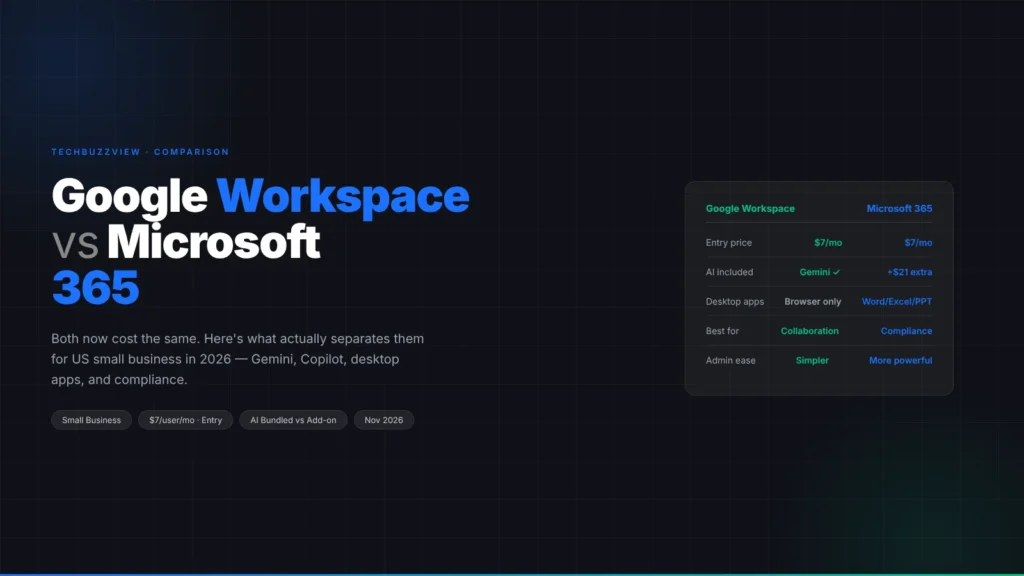
As of July 2026, Google Workspace and Microsoft 365 charge nearly identical prices at every tier. Business Starter and Business Basic are both $7 per user per month on annual plans. The mid tier — Google Workspace Standard and Microsoft 365 Business Standard — both land at $14. Price is no longer the deciding factor.
What actually separates them in 2026: Google bundles Gemini AI across all paid plans at no extra cost; Microsoft 365 Copilot requires a separate add-on at approximately $21 per user per month. That gap — bundled AI versus a costly add-on — combined with meaningful differences in desktop apps, compliance tools, and collaboration design, is what should drive your decision.
Pricing Side by Side (Annual, Per User)
| Tier | Google Workspace | Microsoft 365 |
|---|---|---|
| Entry | Business Starter: $7 — 30 GB pooled storage, 100-participant Meet, Gemini included | Business Basic: $7 — 1 TB OneDrive, 50 GB Exchange mailbox, Teams, web/mobile apps only |
| Mid | Business Standard: $14 — 2 TB pooled storage, 150-participant Meet, recording included, Gemini | Business Standard: $14 — full desktop Word/Excel/PowerPoint, Teams with recording, 1 TB OneDrive |
| Upper | Business Plus: $22 — 500-participant Meet, Vault, enhanced security, Gemini | Business Premium: $22 — Defender for Business, Intune, conditional access, Purview compliance |
| AI add-on | Included in all paid plans | Microsoft 365 Copilot: ~$21/user/month extra |
Month-to-month pricing on either platform runs approximately 20% higher than the annual rate. Verify current prices on the official Google Workspace and Microsoft 365 pricing pages before purchasing — both vendors have adjusted pricing in 2025–2026 and may do so again.
Five Dimensions That Actually Differ
1. AI Integration
Google Workspace: Gemini is built into Gmail, Docs, Sheets, Slides, Meet, and Drive on all paid Business plans. You can draft emails, summarize threads, generate formulas, and get meeting transcripts without a separate purchase.
Microsoft 365: Copilot — which covers Word, Excel, PowerPoint, Outlook, and Teams — costs approximately $21 per user per month on top of the base plan. For a 10-person team, that is an additional $2,520 per year before any AI-assisted work. Some lighter AI features (Copilot in Edge, Designer in personal plans) exist without the add-on, but meaningful productivity AI is locked behind the paid tier.
Verdict: Google wins decisively on AI cost at current pricing. If AI-assisted writing, summarization, and meeting transcription are part of your planned workflow, Workspace’s Gemini inclusion is a substantial value advantage.
2. Desktop Applications
Google Workspace: Browser-only. Docs, Sheets, and Slides are web applications with strong offline mode, but there are no locally installed programs. If your team regularly opens client-sent Word or Excel files with complex formatting, macros, or pivot tables, the browser apps handle most things acceptably — but edge cases exist.
Microsoft 365 Business Standard and Premium: Full desktop versions of Word, Excel, and PowerPoint installable on up to five devices per user. For teams doing complex financial modeling, detailed PowerPoint presentations, or any workflow that requires functionality only the desktop applications offer, this is a real advantage.
Verdict: M365 wins for desktop app depth. GWS is better suited to teams that have already moved to browser-native workflows.
3. Real-Time Collaboration
Google Workspace: Simultaneous real-time editing in Docs, Sheets, and Slides is best-in-class — multiple users editing the same cell, the same paragraph, seeing each other’s cursors live. Version history is built in and granular.
Microsoft 365: Real-time co-authoring in desktop Word, Excel, and the online versions has improved substantially since 2023, but occasional sync conflicts still appear in complex documents when multiple users edit simultaneously on the desktop applications. The browser versions of Word and Excel co-author more cleanly.
Verdict: GWS edges ahead for teams that co-edit documents frequently and need a frictionless experience. M365 has closed the gap but hasn’t fully eliminated it in desktop apps.
4. Video Conferencing
Google Meet: Starter allows 100 participants; recording is only available from Standard ($14) upward. Meet is browser-first — joining a meeting requires no desktop app installation, which matters for external participants and clients.
Microsoft Teams: Business Basic includes meetings with recording. Participant limits on paid plans can reach 300. Teams has a heavier desktop client that some users find slow to load; the web version is lighter. Teams is more capable as a persistent collaboration hub (channels, persistent chat history, integrations) than Meet.
Verdict: Teams wins if you need meeting recording at the entry price tier, or if you use Teams as a persistent team workspace beyond meetings. Meet wins for simplicity and joining friction for external participants.
5. Admin, Security, and Compliance
Google Workspace Admin Console: Genuinely straightforward for non-IT administrators. Policy management, user creation, device settings, and security controls are navigable without a dedicated IT background. Well-suited to businesses without an internal IT team.
Microsoft 365 Business Premium: Includes Microsoft Defender for Business (endpoint protection), Intune (device management and mobile device policy), conditional access, and Purview compliance tools. This is a meaningfully more comprehensive security and compliance stack than anything in the GWS Business tier.
Verdict: M365 Business Premium wins for regulated industries or businesses with strict compliance requirements (healthcare, legal, financial services, government contracting). GWS wins on day-to-day admin simplicity for smaller teams without IT staff.
Who Should Choose Google Workspace
- Startups, creative agencies, consulting firms, and tech teams that work predominantly in browser-based tools
- Teams of 10 or fewer people where simplicity of onboarding and administration matters as much as features
- Organizations where AI-assisted drafting, email summarization, and meeting notes are daily workflow requirements — and paying $21/user/month for Copilot is not viable
- Teams using Chromebooks or Macs where Microsoft’s Windows-first ecosystem is a poor fit
- Businesses where real-time collaborative editing is the primary use case for documents and spreadsheets
Who Should Choose Microsoft 365
- Finance teams, law firms, healthcare organizations, and others with compliance requirements that need Defender, Intune, and Purview
- Teams where Excel is the primary productivity tool and desktop app depth (pivot tables, macros, Power Query) is a daily requirement
- Organizations already standardized on Windows, SharePoint, and Azure Active Directory — the switching cost to GWS is real and material
- Teams that send many client deliverables as Word or PowerPoint files and need the full desktop fidelity those apps provide
- Businesses already using Teams deeply as a communication platform, where channel history, integrations, and voice calling are established workflows
Migration: What Moving Actually Looks Like
From free Gmail to Google Workspace: Google’s built-in Data Migration Service in the Admin Console handles email migration. You’ll need a domain, an admin account that doesn’t end in @gmail.com, and DNS access to change MX records (the commit step, with 24–48 hour propagation). Contacts and calendars migrate separately via Google Takeout. The process is free and straightforward for most teams — plan for a weekend cutover to minimize disruption.
From Outlook.com to Microsoft 365: Enable two-step verification on the source account first, then use IMAP migration in the M365 Admin Center. You’ll need an app password from Outlook.com for IMAP authentication. MX record cutover is again the commit step. Some Business Basic plans have limits on the volume of IMAP mail import; verify your plan’s capability in Microsoft’s admin documentation before starting.
If you’ve chosen Google Workspace and need a step-by-step setup guide, our complete Google Workspace setup guide covers domain verification, MX records, user creation, and email configuration.
The Practical Decision
Both platforms are mature, reliable, and well-supported. The clearest version of the decision:
- If your team lives in a browser and values bundled AI at no extra cost: Google Workspace
- If your team needs desktop Office apps, strong compliance tools, or is already deep in Microsoft’s ecosystem: Microsoft 365
- If you genuinely aren’t sure: start a free trial of both — Google Workspace offers 14 days, Microsoft 365 offers 30 days — and let your team’s actual usage patterns decide
The worst outcome is staying on free Gmail or personal Outlook.com with a business domain because the decision feels complex. Either paid suite gives you custom email, proper admin controls, and a recoverable backup posture that free tools don’t provide.