
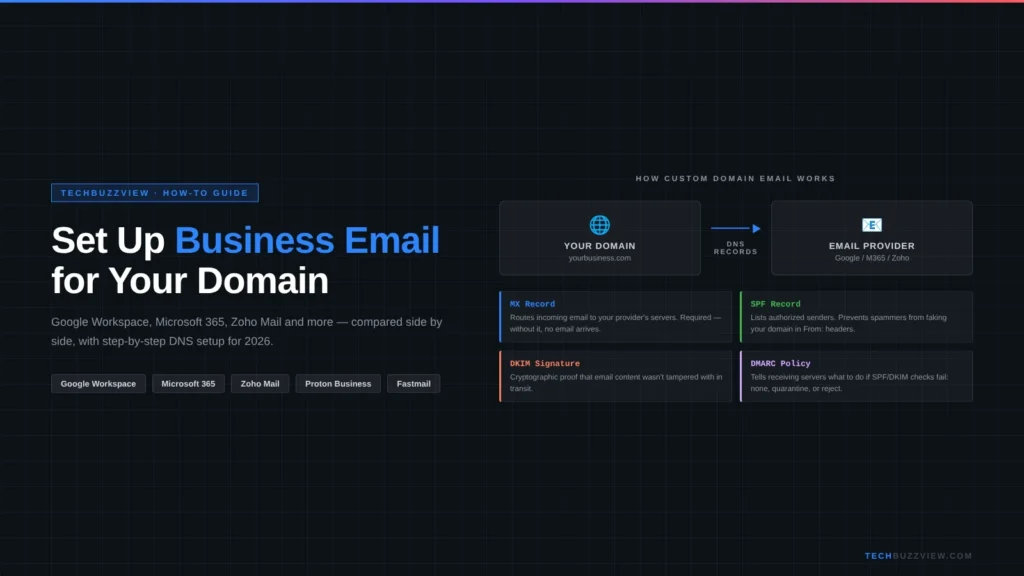
How to Set Up Business Email for Your Domain in 2026 (Step-by-Step)
The short answer: pick a provider, point your domain’s MX records at their servers, verify ownership with a TXT record, create your mailbox, and add SPF and DKIM records to protect deliverability. The whole process takes 15–30 minutes for most domains, plus up to 48 hours for DNS to fully propagate. Three approaches cover most situations — Google Workspace for teams that live in Google’s ecosystem, Microsoft 365 for teams built around Office apps, and Zoho Mail (including its free tier) for solo users and tight budgets. Read on for a full comparison and step-by-step walkthroughs.
Note: Some links in this article may be affiliate links. We may earn a small commission at no extra cost to you. This does not affect our editorial recommendations.
Why a Custom Domain Email Address Matters
Sending business email from a @gmail.com or @yahoo.com address signals improvisation, not professionalism. A you@yourcompany.com address does several things a free account cannot:
- Trust: Clients, vendors and payment processors take you more seriously. Some B2B software won’t even accept a free-tier email for sign-up.
- Deliverability: A properly configured custom domain with SPF, DKIM and DMARC dramatically reduces the chance your emails land in spam.
- Control: You own the domain. If you switch providers, your email address stays the same — you just re-point your MX records.
- Team scaling: Adding
sales@,support@orinfo@aliases takes seconds once the domain is set up.
If you’re still weighing which hosting plan to use for your website, our guide to the best web hosting for small businesses in 2026 covers the major options and their email bundling policies.
Which Provider Should You Pick?
Use this quick framework before comparing prices:
- Solo or 1–2 people, tight budget: Zoho Mail’s free tier (up to 5 users) is hard to beat. It lacks some polish but works reliably for basic email.
- Small team already using Google Docs/Sheets/Meet: Google Workspace is the natural fit. The Starter plan adds business-grade Gmail, Calendar and Meet to tools you already use.
- Team built around Word, Excel and Teams: Microsoft 365 Business Basic bundles Outlook, Teams and 1 TB of OneDrive storage.
- Privacy-first or encrypted email need: Proton Business gives end-to-end encryption by default, with zero-knowledge storage.
- Email bundled with hosting (simplest setup): Hostinger’s Business or Premium Hosting plans include one or more email accounts; setup is a few clicks inside hPanel.
Provider Comparison at a Glance
Prices are as of October 2026 on annual billing. Always verify current pricing on each provider’s website before subscribing.
| Provider | Starting price (per user/mo) | Storage per user | Best for | Setup difficulty |
|---|---|---|---|---|
| Google Workspace Starter | ~$7 | 30 GB pooled | Teams using Google apps | Easy |
| Microsoft 365 Business Basic | ~$6 | 50 GB mailbox + 1 TB OneDrive | Teams using Office/Teams | Easy |
| Zoho Mail Free | $0 (up to 5 users) | 5 GB per user | Solopreneurs, tight budgets | Easy |
| Zoho Mail Lite | ~$1 | 5 GB per user | Budget teams needing more features | Easy |
| Proton Business | ~$6.99 | 15 GB+ | Privacy-first teams | Moderate |
| Fastmail | ~$4–$5 | 30 GB | Power users wanting speed & privacy | Moderate |
| Hostinger Email | ~$1 (bundled with hosting) | 10 GB+ | Hostinger hosting customers | Very easy |
Step-by-Step: Set Up Google Workspace
Google Workspace is the most popular choice for US small businesses. Here’s the full setup flow.
Step 1 — Sign up and choose your domain
- Go to workspace.google.com and click Get started.
- Enter your business name and number of employees, then click Next.
- On the domain screen, choose Use a domain I already have if you own one, or register a new domain through Google (they resell via Google Domains partner). Using an existing domain is the more common path.
- Enter the domain (e.g.
yourcompany.com) and follow the prompts to set up your first admin account (e.g.you@yourcompany.com). - Complete payment. Plans are billed per user per month on an annual or monthly commitment.
Step 2 — Verify domain ownership
- After signing up, Google gives you a TXT record to add to your domain’s DNS. It looks like:
google-site-verification=xxxxxxxxxxxx - Log in to your domain registrar (GoDaddy, Namecheap, Cloudflare, etc.), navigate to DNS Management or DNS Records, and add a new TXT record at the root (
@) with the verification string Google provides. - Return to the Google Admin Console and click Verify. Verification usually completes within a few minutes, though DNS can take up to an hour.
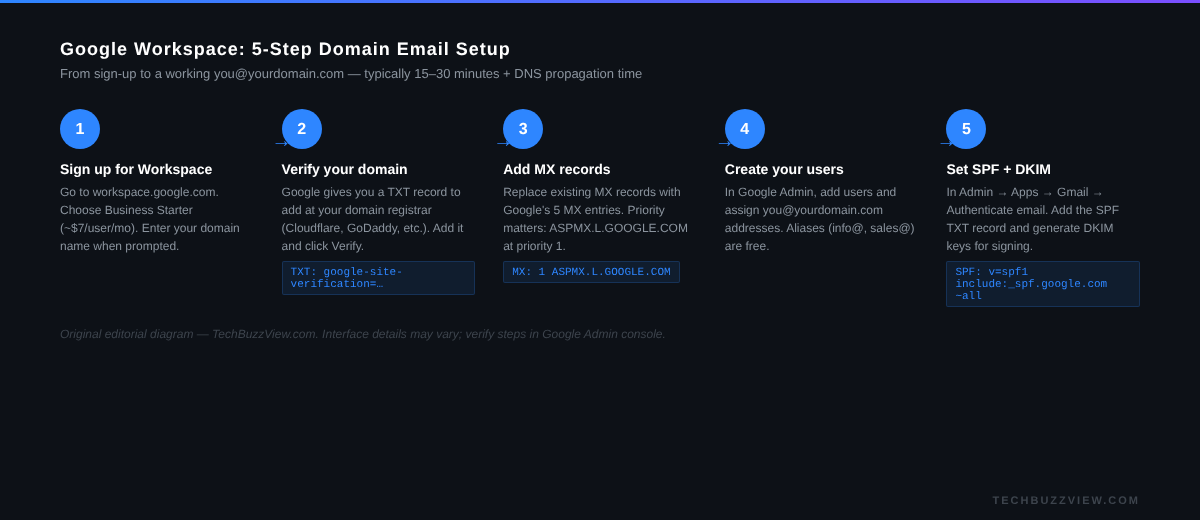
Step 3 — Set MX records
- In your domain registrar’s DNS panel, delete any existing MX records pointing to your old email provider (or your host’s mail server).
- Add the following five Google MX records exactly as shown:
| Priority | Mail server |
|---|---|
| 1 | ASPMX.L.GOOGLE.COM |
| 5 | ALT1.ASPMX.L.GOOGLE.COM |
| 5 | ALT2.ASPMX.L.GOOGLE.COM |
| 10 | ALT3.ASPMX.L.GOOGLE.COM |
| 10 | ALT4.ASPMX.L.GOOGLE.COM |
Leave the TTL at the default (300–3600 seconds). Once propagated, email sent to your domain will route to Gmail’s servers.
Step 4 — Create users and aliases
- In the Google Admin Console, go to Directory → Users → Add new user.
- Create individual mailboxes for each team member.
- For shared inboxes like
info@orsupport@, go to Groups and create a group that forwards to one or more users — this does not count as an additional paid seat.
Step 5 — Set up SPF and DKIM
- SPF: Add a TXT record at the root of your domain:
v=spf1 include:_spf.google.com ~all. This tells receiving servers that Google is authorised to send email from your domain. - DKIM: In the Admin Console, go to Apps → Google Workspace → Gmail → Authenticate email. Click Generate new record, copy the TXT record Google provides, add it to your DNS, then click Start authentication. DKIM signing activates once Google confirms the record.
- Optionally add a DMARC TXT record (covered below) for full sender authentication.
Step-by-Step: Set Up Zoho Mail (Free Tier)
Zoho Mail’s free plan supports up to five users, each with 5 GB of storage, and has no ads — unusual for a free email service.
- Go to zoho.com/mail and click Sign Up for Free. Choose the Forever Free plan.
- Enter your domain name. Zoho will prompt you to verify ownership via a TXT or CNAME record — add it to your DNS registrar the same way as Google’s verification record.
- Once verified, Zoho provides its MX records (typically
mx.zoho.comandmx2.zoho.com). Replace any existing MX records in your DNS with Zoho’s. - Create your primary mailbox during the setup wizard, then add up to four more users from the Zoho Mail admin panel.
- Add Zoho’s SPF record:
v=spf1 include:zoho.com ~all. Enable DKIM from Zoho’s admin panel under Domain Authentication.
The free plan lacks calendar sync and some integrations available in paid tiers, but for basic professional email it works well.
DNS Records Explained: MX, SPF, DKIM and DMARC
Most setup problems trace back to DNS misconfigurations. Here’s what each record does:
MX (Mail Exchanger)
Tells the internet where to deliver email for your domain. If your MX records are wrong or missing, inbound email bounces. You should have exactly the MX records your email provider specifies — no more, no fewer.
SPF (Sender Policy Framework)
A TXT record that lists which servers are allowed to send email from your domain. Without SPF, any server can claim to send email as you, and receiving servers are more likely to mark your messages as spam or reject them. Example for Google: v=spf1 include:_spf.google.com ~all. You should have exactly one SPF record per domain — merging multiple into one if needed.
DKIM (DomainKeys Identified Mail)
Adds a cryptographic signature to outgoing emails, letting the recipient’s server verify the message wasn’t altered in transit. Your email provider generates the key pair and gives you a TXT record to add at a specific subdomain (e.g. google._domainkey.yourcompany.com).
DMARC (Domain-based Message Authentication, Reporting & Conformance)
Ties SPF and DKIM together and tells receiving servers what to do if both checks fail — reject the email, quarantine it (send to spam) or do nothing (monitor only). Start with a permissive monitoring policy: v=DMARC1; p=none; rua=mailto:dmarc@yourcompany.com. Once you’re confident in your setup, tighten to p=quarantine or p=reject.
Common Setup Mistakes and Fixes
- Leaving old MX records in place: Having two sets of MX records (old host + new provider) means some email goes to the wrong server. Remove old records before adding new ones.
- Multiple conflicting SPF records: DNS allows only one SPF TXT record per domain. If you have two, receiving servers ignore both. Combine them:
v=spf1 include:_spf.google.com include:mail.example.com ~all. - Sending before DNS propagates: MX and TXT record changes can take up to 48 hours to propagate worldwide. Use a tool like MXToolbox or
dig MX yourcompany.comin terminal to confirm records are live before testing. - Forgetting DKIM activation: Adding the DKIM TXT record to DNS is not enough — you also have to click Start authentication (Google) or Activate (Zoho) in the admin console to turn on signing.
- Using the wrong DKIM subdomain: Each email provider gives a specific prefix (e.g.
google._domainkey). Copy it exactly — don’t substitute your own prefix. - Passwords stored insecurely after setup: Once your email is live, make sure your admin account uses a strong, unique password and MFA. Our guide to the best password managers for teams in 2026 covers options that work well with Google Workspace and Microsoft 365.
Frequently Asked Questions
Can I use a free Gmail account for business?
You can, but it’s not recommended. A @gmail.com address looks unprofessional, and you lose the custom domain email address if the account is suspended. Google Workspace starts at roughly $7/user/month and gives you Gmail with a custom domain, admin controls and better support.
How long does DNS propagation take?
Most records propagate within 1–2 hours, but the official maximum is 48 hours. In practice, changes made at major registrars (Cloudflare, Namecheap, Google Domains) often take 5–30 minutes. Changes at smaller or older registrars can be slower.
Do I need DMARC right away?
Not immediately, but adding a monitoring policy (p=none) from day one costs nothing and lets you catch authentication failures early. Google and Yahoo now require DMARC for senders sending over 5,000 messages per day, so setting it up while volumes are low is much easier than retrofitting it later.
Can I keep my existing emails when switching providers?
Yes. Most paid providers (Google Workspace, Microsoft 365, Zoho) offer migration tools that pull in email from IMAP sources. Set up the new account, run the import while the old account is still active, verify everything transferred, then switch MX records. Allow a few days’ overlap to catch any email still routing to the old server.
Next Steps
Setting up business email for your domain is a one-time investment of 20–30 minutes that pays off in deliverability, professionalism and long-term control. The quickest path: sign up for Zoho Mail’s free tier if you’re a solo operator, or Google Workspace Starter if you’re a team, verify your domain, swap MX records, add SPF and DKIM, and you’re live. Keep an eye on your DMARC reports in the first few weeks to catch any misconfigured senders.